Setting up
Six steps, about two minutes: the extension, an account, and the two connected.
-
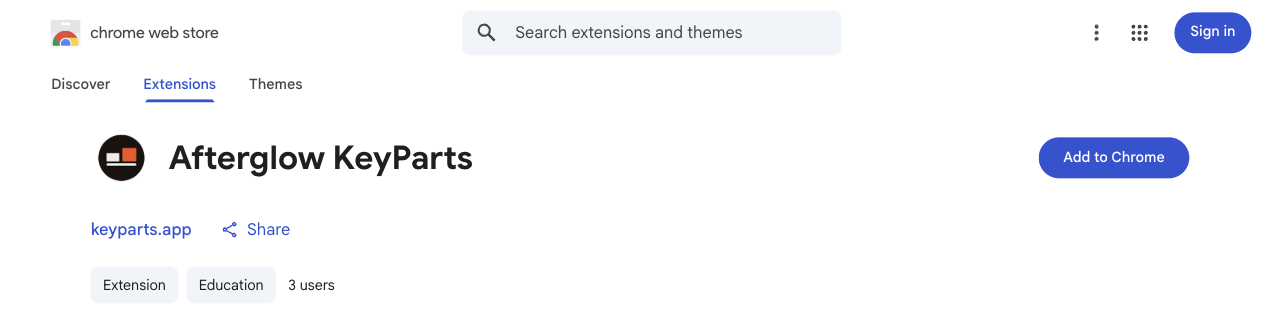
Add to Chrome
Install from the Chrome Web Store. Chrome asks to confirm; the extension needs to read YouTube pages and to talk to keyparts.app, nothing else.
chromewebstore.google.com/detail/afterglow-keyparts/ndcggmjhaednmcgedipfigmimkpnlamd
-
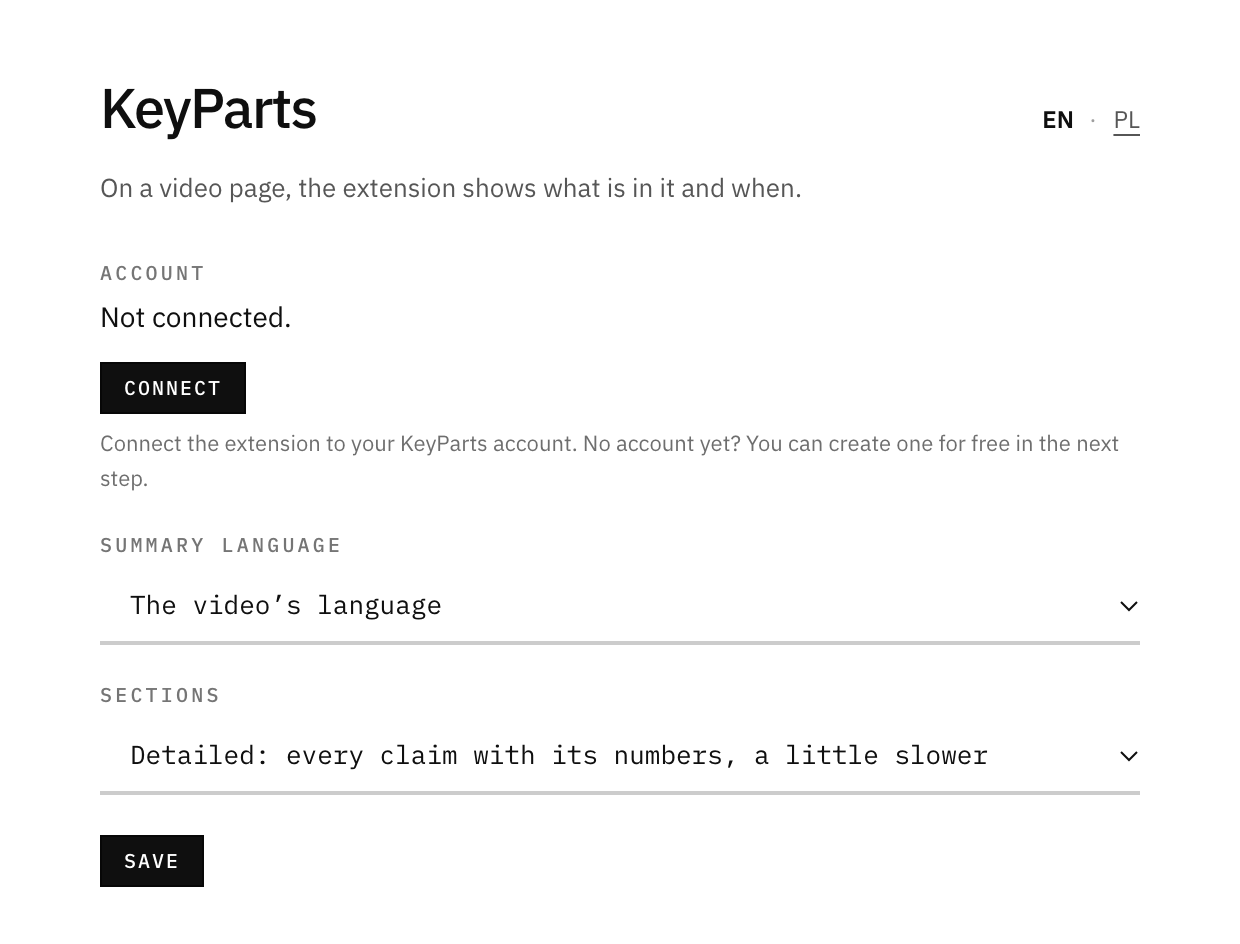
The options page opens by itself
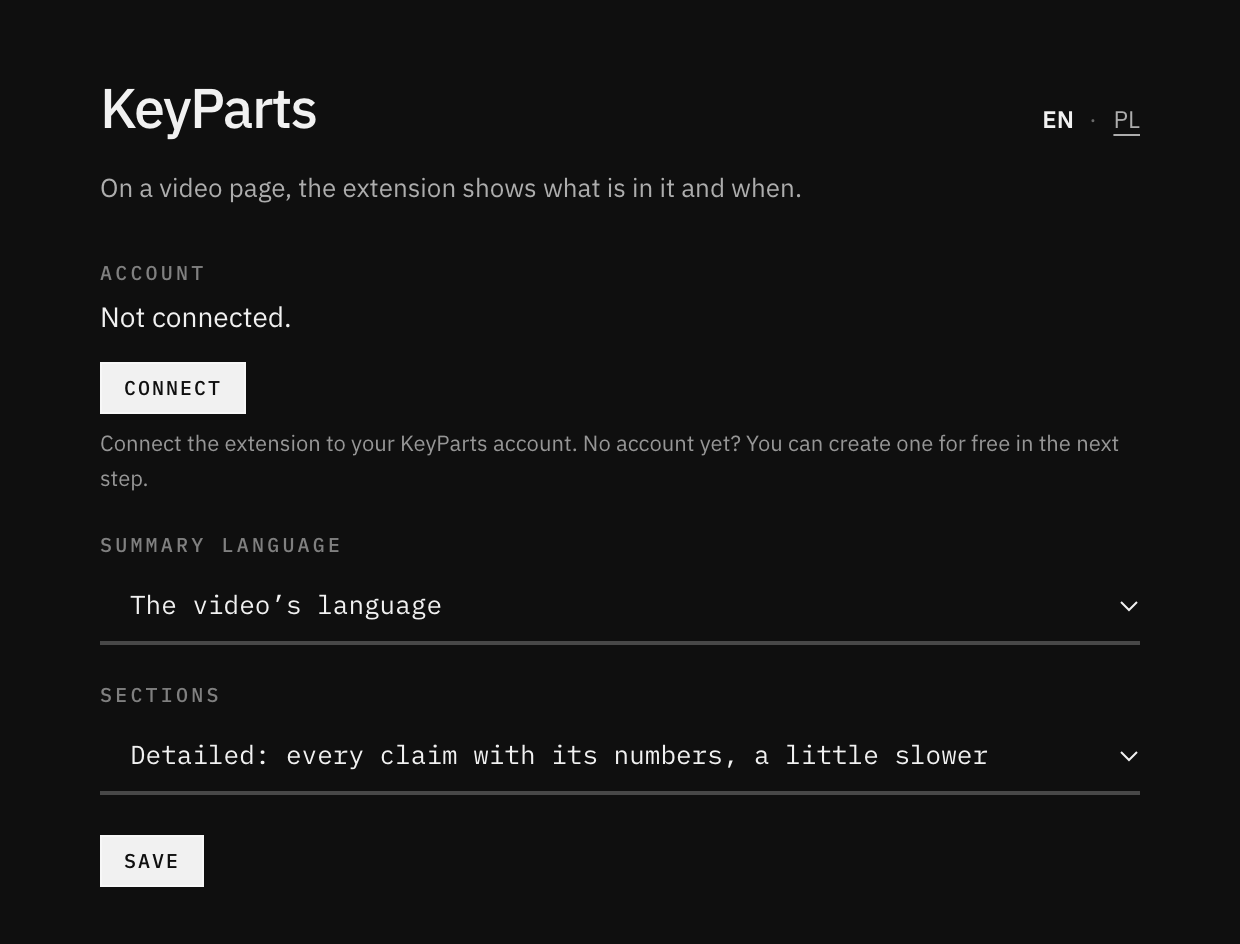
Click “Connect”. The field under it sets the extension's language.
chrome-extension://ndcggmjhaednmcgedipfigmimkpnlamd/options.html
-
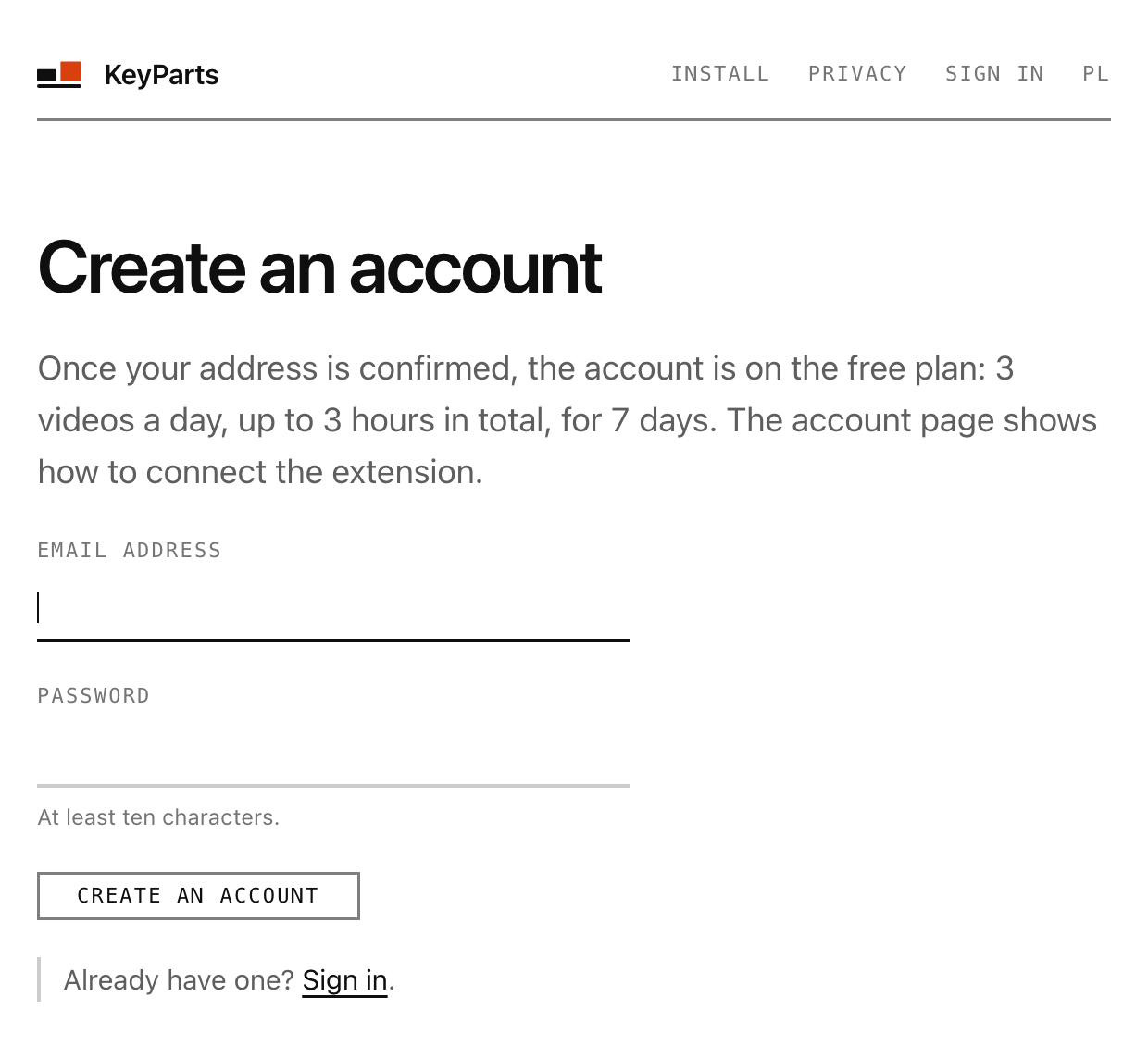
Create an account, or sign in
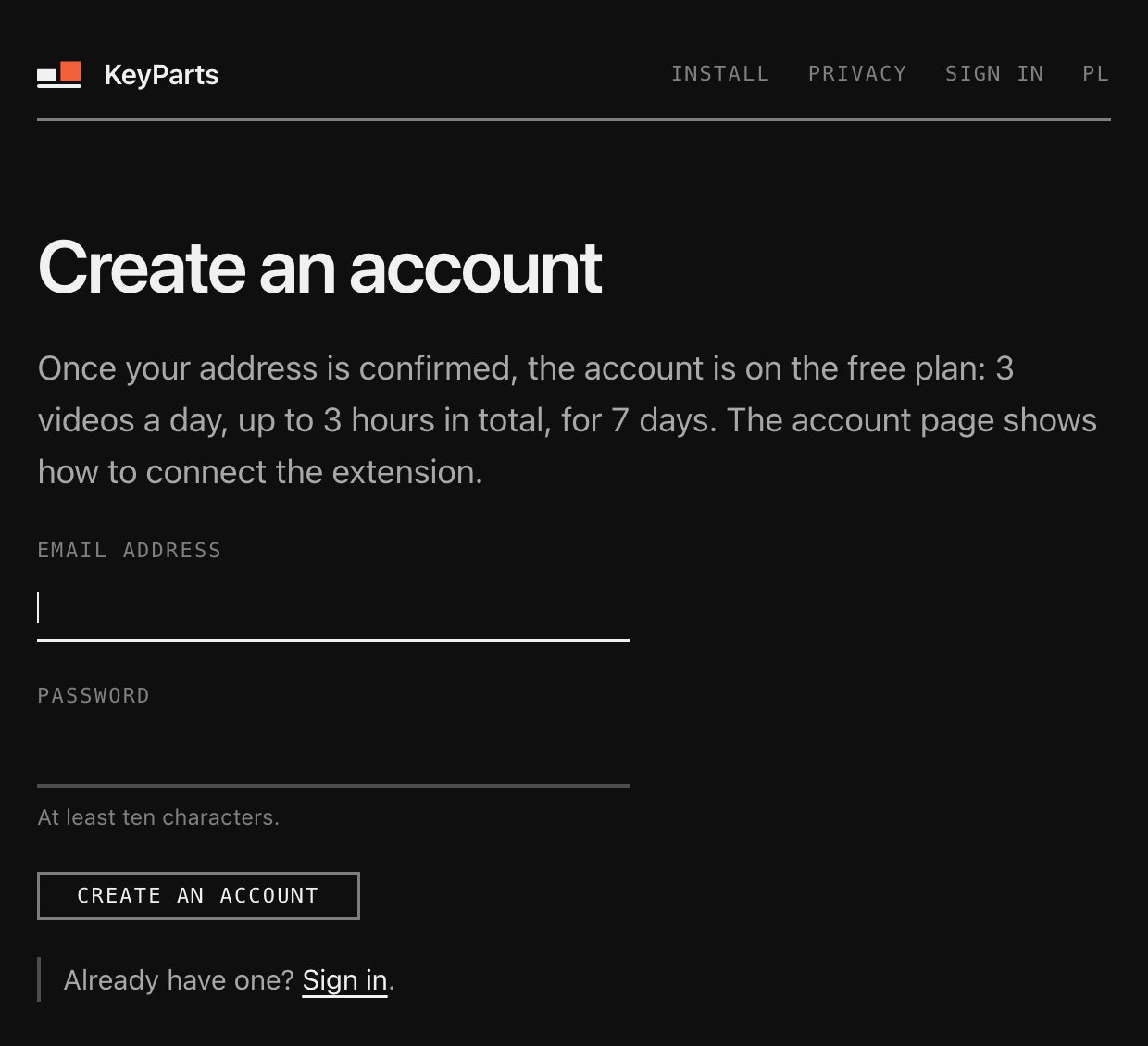
Connect opens keyparts.app. An account is an address and a password; nothing else is asked. If you already have one, sign in instead.
keyparts.app/rejestracja
-
Confirm your address
We'll send you an e-mail with a confirmation link. Your account starts working once you click it. If it doesn't arrive within a minute, check your spam folder.
-
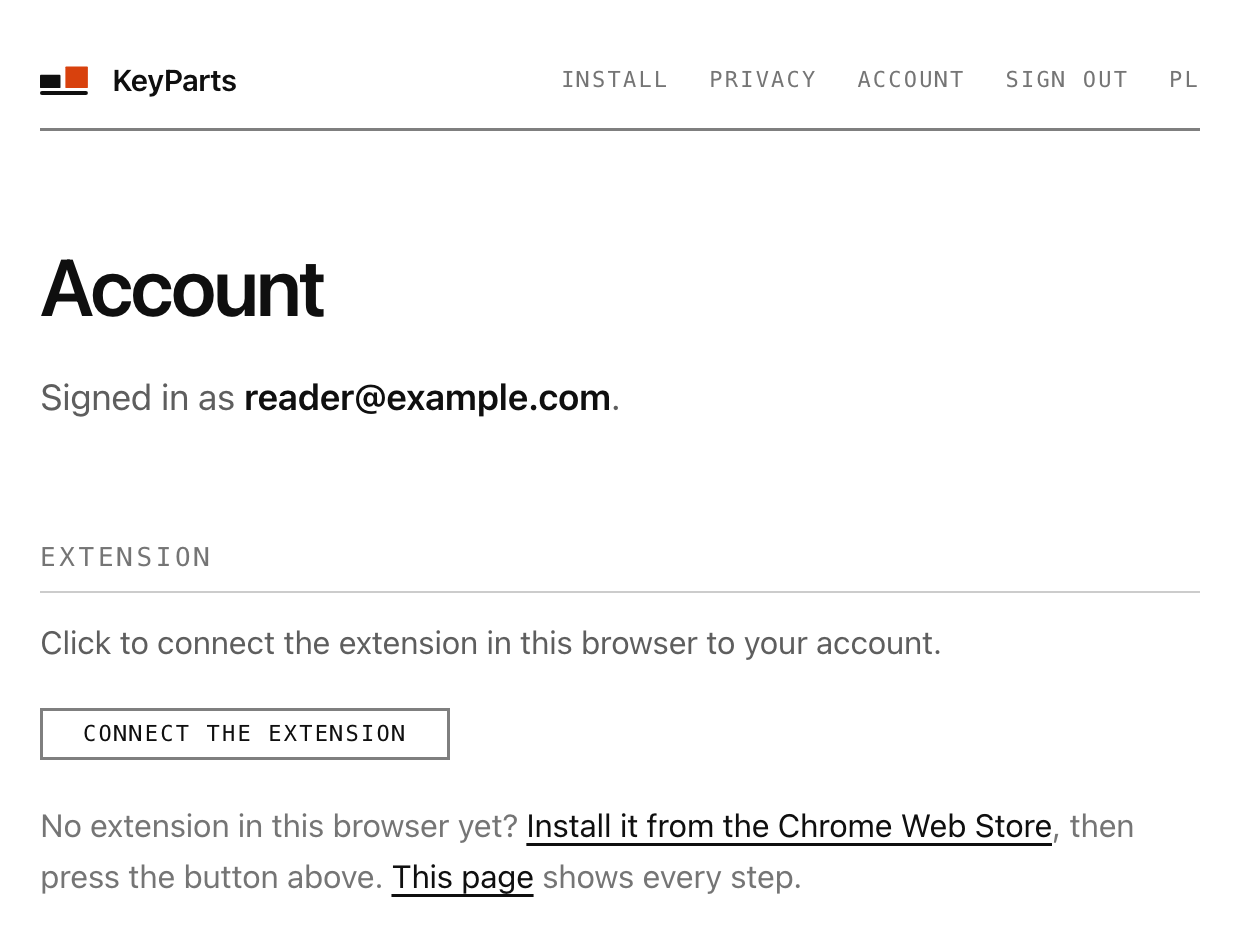
Connect the extension
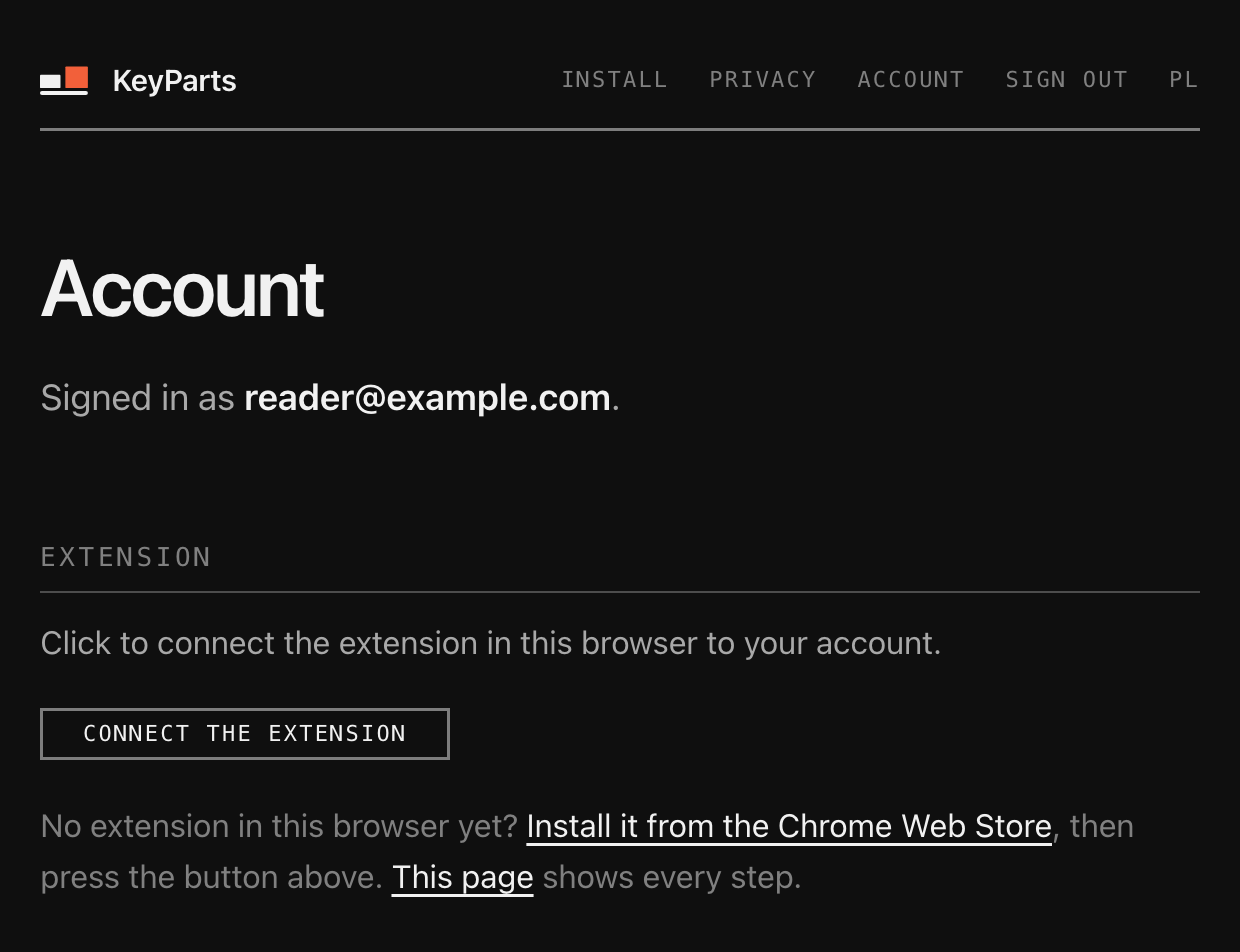
Back on the account page, press Connect the extension. That is all: the extension in this browser is now signed in.
keyparts.app/konto
-
Open a video
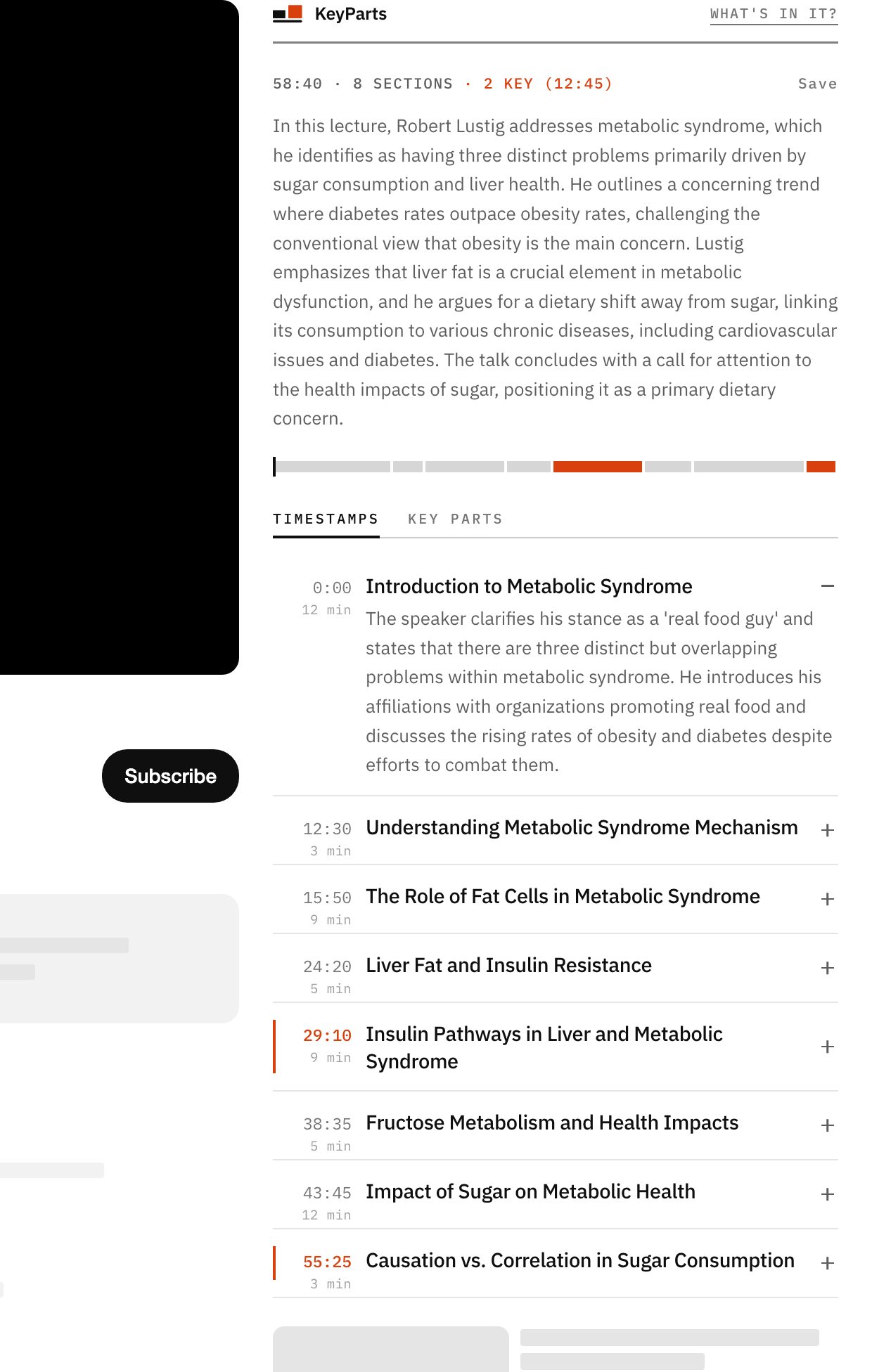
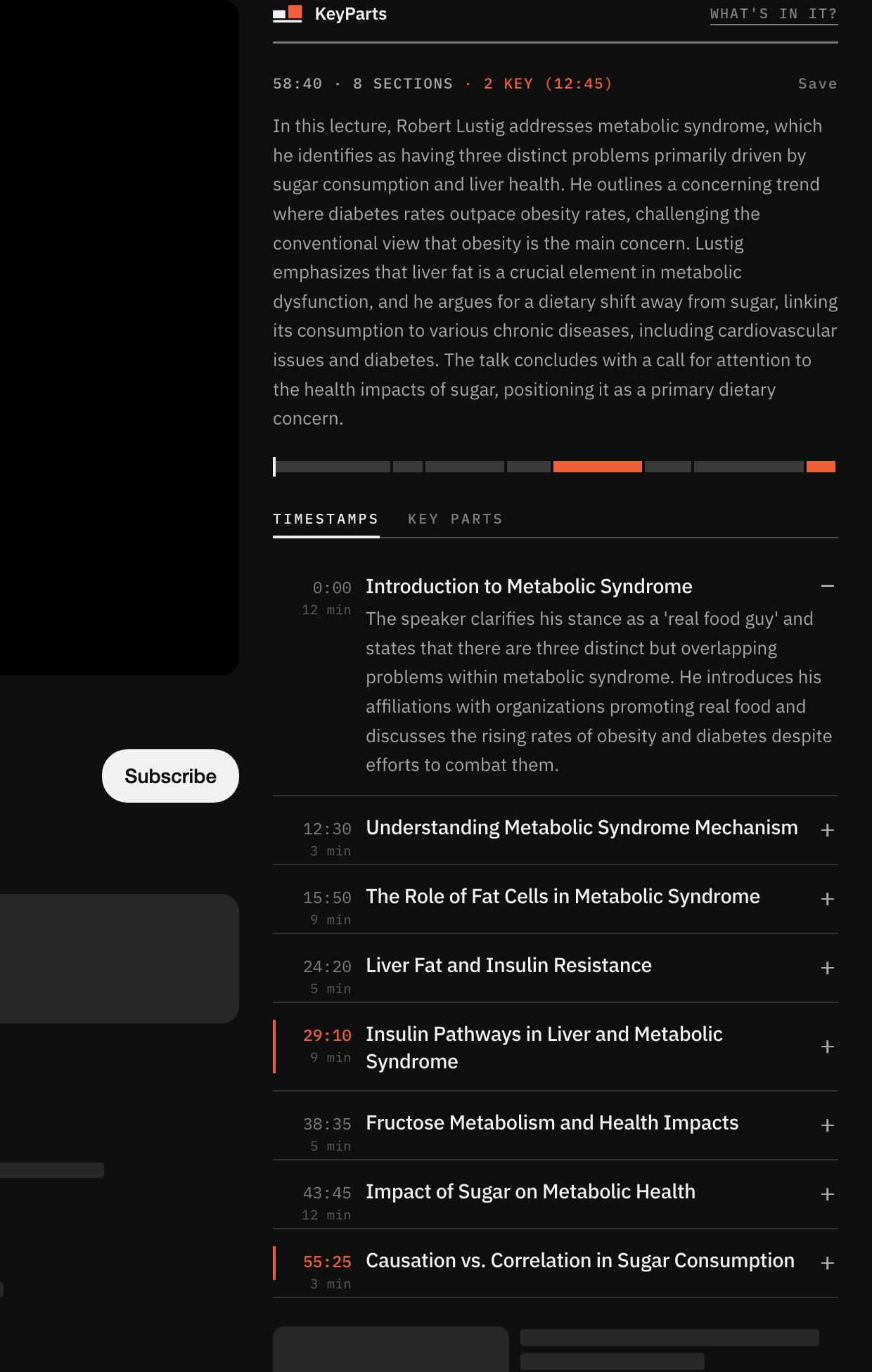
On a video page, the KeyParts extension shows a “What's in it?” button in the right column. Click it, and the video's sections show up within a few seconds. On YouTube's lists, a small KeyParts mark stands before each video's title. Click it to see the summary without opening the video.
youtube.com/watch?v=zx-QrilOoSM
In the KeyParts extension's options you can set the extension's language and the language of the summary separately.